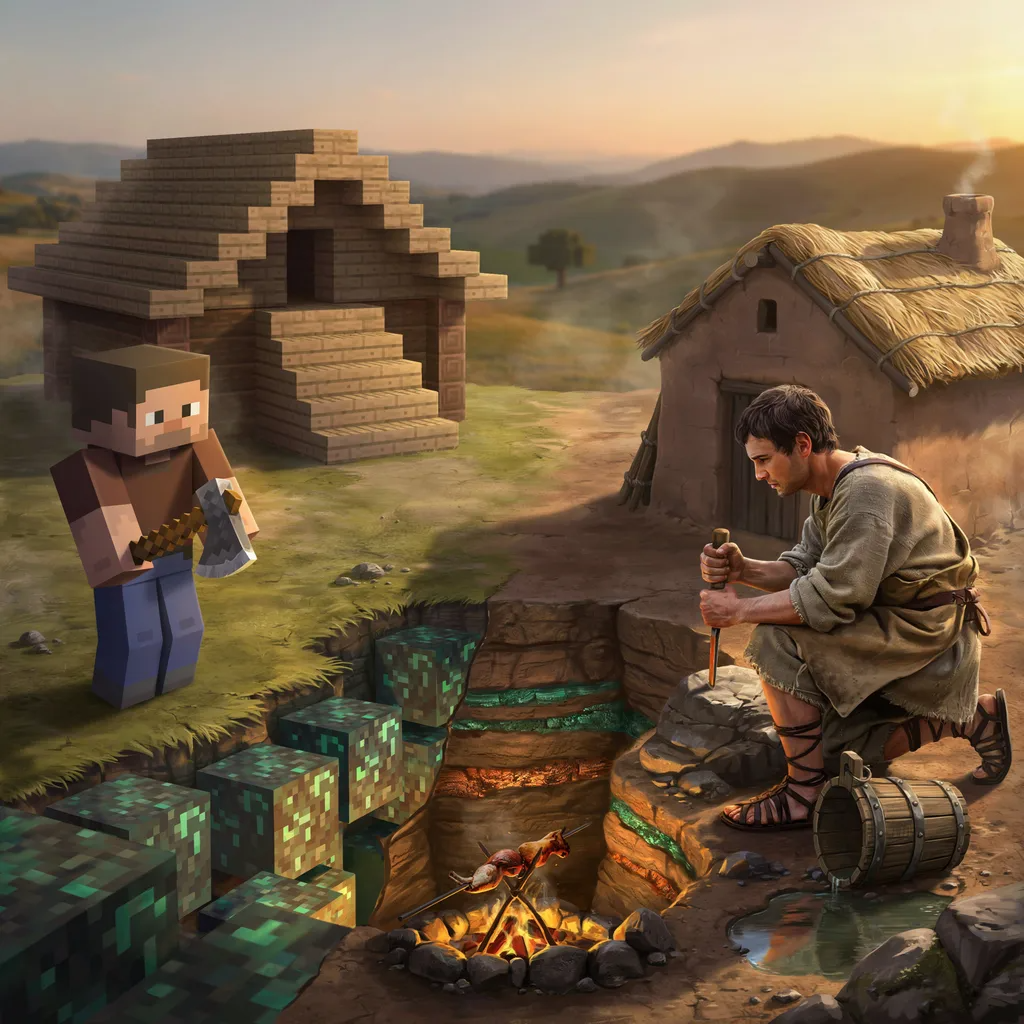
The Minecraft game is much more than just a survival game about breaking and placing blocks. Over the years, it has turned into a massive digital canvas for creators worldwide. Players use the game to build incredible worlds, tell deep stories, and create beautiful 3D block art.
Recently, the game introduced a massive update known to many players as the Minecraft Copper Age. This update brought new blocks, mechanics, and design choices to the table. At the same time, community artists have started moving outside the game. They use professional software to create Blender rendering masterpieces based on their worlds.
If you want to know how players turn simple voxels into high-quality digital artwork, you are in the right place. This guide will walk you through the history, the tools, and the exact steps to create breathtaking voxel art.
What is the Minecraft Game?
To understand how Minecraft art became so popular, we first need to look at the game itself. Released over a decade ago, this sandbox game gives players total freedom. There are no strict goals or set rules. You are simply dropped into a massive, procedurally generated world made entirely of 3D pixels.
The game features two main modes:
- Survival Mode: Players must gather resources, manage their hunger, and fight off monsters like creepers and zombies.
- Creative Mode: Players get unlimited blocks and the ability to fly. This mode is where most creative building happens.
Because the world is made of simple cubes, it acts just like digital LEGO bricks. Over time, this simple aesthetic inspired a brand-new wave of virtual photography and game design. Creators realized they could build massive statues, replica cities, and fantasy landscapes within their worlds.
Welcome to the Minecraft Copper Age
For a long time, iron and diamond were the most important materials in the game. However, a major update changed the landscape by introducing copper. This marked the official beginning of what players call the Copper Age in Minecraft.
[Copper Ore] —> [Raw Copper] —> [Copper Block] —> [Oxidized Copper (Green)]
The Magic of Oxidation
Copper brought a completely unique feature to the game: weathering. When you place a regular orange copper block in the world, it does not stay orange forever. Over time, exposure to air causes copper oxidation. The block slowly shifts colors. It goes from bright orange to a dark brown, then to a beautiful teal, and finally to a solid green color.
This mechanic changed how players think about aesthetic building. For the first time, buildings in the game could look like they were aging in real time. It gave a sense of history and realism to medieval castles, steampunk factories, and ancient ruins.
New Building Materials
The update did not just add basic blocks. It also introduced a variety of crafting recipes for decoration:
- Cut Copper Stairs and Slabs: Perfect for making detailed roofs.
- Chiseled Copper: Great for adding ancient patterns to walls.
- Copper Grates: Light-emitting blocks that give a futuristic or industrial look.
- Lightning Rods: Functional items that protect wooden roofs from fires.
Artists instantly fell in love with these items. The green and orange tones allowed for incredible color contrast in environmental design.
The Rise of Minecraft Art
As building tools grew more advanced, a distinct community of digital artists emerged. These creators do not just play the game; they use it as a tool for architectural visualization.
What is Voxel Art?
In traditional digital art, pixels are flat squares on a 2D screen. In the Minecraft game, everything is made of 3D cubes called voxels. Therefore, making art in Minecraft is a form of voxel art.
Artists build giant, larger-than-life creations. They use clever tricks with lighting, shadow, and color palettes to make their blocky builds look incredibly detailed from a distance.
Different Styles of Community Art
Within the community, you will find several popular styles of creative design:
- Mega Builds: Giant structures, like full-scale fantasy kingdoms or sci-fi starships, that take hundreds of hours to build.
- Organic Builds: Using sharp blocks to create smooth, natural shapes like dragons, trees, humans, or animals.
- Terraforming: Redesigning the natural landscape to create massive custom mountains, valleys, and custom oceans.
Moving Beyond the Game: Why Use External Tools?
While the game looks charming on its own, it has visual limits. The game engine uses basic lighting systems to ensure it runs smoothly on regular computers and consoles. If you want your 3D models to look truly realistic, you have to export them out of the game.
This is where external rendering tools come into play. By moving a blocky build into a dedicated graphics engine, artists can manipulate the scene like a real-world movie set. They can add custom fog, realistic sunbeams, and professional camera depth. The most popular software for this process is Blender.
What is Blender Rendering?
Blender is a free, open-source software used for creating 3D graphics, animation, and visual effects. It is used by Hollywood movie studios, indie game developers, and freelance artists.
When we talk about Blender rendering, we are talking about the process of taking a 3D scene and calculating how light interacts with it to generate a final, flat image. Blender uses two primary engines to do this:
1. Eevee Engine
Eevee is a real-time render engine. It is incredibly fast because it estimates how light behaves. It works similarly to the graphics engines found in modern video games. It is perfect for quick previews or stylized cartoon animations.
2. Cycles Engine
Cycles is a path-tracing render engine. It simulates real-world physics. It traces actual rays of light as they bounce off surfaces, pass through glass, and cast soft shadows. While it takes much longer to process, Cycles produces photo-realistic results. It makes plastic blocks look like real plastic and metallic copper shine like real metal.
Connecting Minecraft and Blender
How does a build travel from a blocky game into a professional 3D software package? The workflow is actually much easier than it sounds, thanks to helpful community programs.
[In-Game Build] —> [Mineways Export (.OBJ)] —> [Blender Import] —> [Cycles Render]
Artists use special exporters like Mineways or jMC2OBJ. These free tools allow you to open your game save file, select a specific region of your world, and convert the blocks into a standard 3D model file (usually an .obj or .fbx format).
Once exported, the file can be opened directly inside Blender. Every single block, staircase, and copper wall is preserved as a highly detailed 3D mesh, ready for a professional upgrade.
Step-by-Step: Creating Your First Blender Minecraft Render
If you want to try your hand at creating stunning digital artwork, you can follow this basic production pipeline.
Step 1: Export Your Build
Open your world file in an exporter tool like Mineways. Select the area you want to render. Make sure to export the texture maps along with the 3D model. These textures contain the iconic pixel patterns of the blocks.
Step 2: Import Into Blender
Open a new project in Blender and delete the default cube. Go to File -> Import -> Wavefront (.obj) and select your exported world file. Your Minecraft game creation will appear on the screen.
Step 3: Fix the Textures
By default, Blender might try to smooth out your textures, making the blocks look blurry. To fix this, you need to change the texture interpolation from “Linear” to “Closest” (Nearest Neighbor). This keeps the sharp, crisp pixel edges that make the game look so iconic.
Step 4: Set Up the Lighting
To make your weathered copper blocks pop, you need great lighting. Add a “Sun” light source to your scene. Turn on Cycles rendering and adjust the angle of the sun to cast long, dramatic shadows across your landscape.
Step 5: Adjust the Camera
Position your virtual camera. You can adjust the focal length to get a wide panoramic shot or a tight cinematic close-up. Turn on “Depth of Field” to blur the background slightly, which gives the image a professional look.
Step 6: Hit Render
Click Render Image. Blender will begin calculating the light paths, block textures, and reflections, resulting in a beautiful piece of high-resolution art.
Advanced Techniques for Stunning Minecraft Art
Once you know the basics of Blender rendering, you can start using advanced tricks to make your artwork truly stand out on social media platforms like ArtStation or Reddit.
1. Advanced Material Nodes
In Blender, materials are controlled by a system called shading nodes. Instead of letting your blocks look flat, you can use nodes to add roughness maps and normal maps.
- A roughness map tells Blender which parts of a block should reflect light (like shiny raw copper) and which parts should stay matte (like dirt or wool).
- A normal map adds artificial depth, making the bricks look like they have bumps, cracks, and crevices without adding extra geometry.
2. Volumetric Fog
Adding a volume scatter node to your world environment creates realistic atmosphere. Light beams from the sun will slice through the fog, creating dramatic god rays. This technique is widely used in fantasy-themed environmental art to add mystery and scale.
3. PBR Texture Packs
Many artists use Physically Based Rendering (PBR) texture assets. These high-end textures replace the standard game pixels with realistic surfaces. When applied to your model, your oxidized copper blocks will actually look like corroded, weathered metal with real metallic sheen and rust textures.
The Impact of Art on the Gaming Community
The rise of digital rendering has completely changed the community around the Minecraft game. What started as a basic indie project has turned into a legitimate medium for conceptual design.
Many professional build teams are hired by companies to create custom maps, marketing materials, and promotional posters. These teams rely entirely on the combination of in-game construction and Blender rendering to showcase their products. It has opened up real-world career paths for talented young builders and animators.
Summary Table: Game Engine vs. Blender Rendering
To see exactly how much external tools improve your voxel art, let’s compare the in-game visuals with a professional Blender setup.
| Feature | In-Game Graphics Engine | Blender (Cycles) Render Engine |
| Primary Lighting | Static block light levels and simple shadows | Real-time ray tracing and physical light bouncing |
| Reflections | None (unless using heavy third-party mods) | Perfect mirror, metallic, and water reflections |
| Atmosphere | Basic weather particles (rain, snow) | Volumetric fog, dust particles, and custom god rays |
| Material Depth | Flat 2D pixel textures on cube faces | 3D bump maps, roughness controls, and realistic sheen |
| Camera Control | Fixed first-person or third-person view | Full cinematic camera control with depth of field |